Coming soon
Apple Watch
A wrist recorder, the way Wear OS works today. Not available to pair yet.
The apps
Mac and Windows for listen in the room and on a call — then review and finalise there. Phone is the next-best recorder. Watch records from the wrist. Browser is the console when a clinic PC cannot install the app. Same login. Same drafts. You finalise.
Download
Mac — macOS 12+ · Apple Silicon (M1–M4)
Windows — Windows 10 or 11 · 64-bit. SmartScreen steps
iPhone & iPad — For iPhone and iPad · opens the App Store
Available
Mac
Home — room and call
Mic + call audio
Available
Windows
Home — room and call
Mic + call audio
Available
Browser
Fallback console — no install
Mic + call (Chrome/Edge)
Available
Android
In the room, on the phone
Mic only
Available
Wear OS
A recorder on your wrist
Mic only
Available
iPhone & iPad
In the room, on the phone
Mic only
Coming soon
Apple Watch
A recorder on your wrist
Mic only
Desktop
The desktop app listens in the room and on a call — mic + call audio, never the video stream — and stays in the menu bar while you work. Sign in with the same account you use on the phone or watch. Drafts from those devices land here.
Download
Mac — macOS 12+ · Apple Silicon (M1–M4)
Windows — Windows 10 or 11 · 64-bit. SmartScreen steps
Download the installer
Apple Silicon Macs use the main download. Intel Macs from 2019–2020 have their own link. Windows is a 64-bit installer.
Open it once
macOS may ask you to confirm Open. Windows may show SmartScreen until signing is finished. Both are one-time prompts.
Sign in
Use the email, Google, or Microsoft sign-in you already have. Drafts appear in the same workspace as the phone, watch, and browser.
Mac: the app is signed and notarized by Apple. macOS may still prompt once on first open — choose Open to confirm.
Windows SmartScreen
Windows may warn on first install until we finish Authenticode signing. The file is served only from updates.intelligentconsult.app — follow the steps below if SmartScreen appears.
Clinic IT can install silently via Intune or Group Policy using the same download link — ask your administrator if personal installs are blocked.
Authenticode signing is planned so Windows shows Intelligent Mind as the verified publisher and this one-time prompt goes away.
Fallback console
Chrome or Edge can still hear a call tab when you cannot install. Safari and Firefox stay mic-only. Phone and watch drafts land here.
Browser
When a clinic PC cannot install the desktop app — or you want to try first — the browser is still the computer workspace. Chrome or Edge can capture your microphone and the call tab (never video). Safari and Firefox stay mic-only. Drafts captured on phone or watch land here too.
Open Intelligent Consult
Create an account or sign in. The workspace is the same one the desktop app uses.
Listen is weaker than the desktop app
For telehealth, allow the microphone, then share the call tab so we can hear the other side. Safari and Firefox stay mic-only. Prefer the desktop app when you can install it.
Review and finalise here
Drafts captured on phone or watch land in this workspace. Edit, revise, and finalise on this screen when it is your computer.
Android
The Android app is for the room and for phone-on-speaker. It does not capture call audio from Zoom or Teams. Glance at the draft on the phone; review and finalise on desktop — or in the web console if you cannot install.
For Android phones and tablets · opens Google Play
Install from Google Play
Search Intelligent Consult, or use the button on this page. The listing is the same one Wear OS uses.
Sign in
Email and password, or Google or Microsoft. It is the same account as the browser and desktop app.
Consent, then record
The first consult asks you to confirm consent. Keep the app open while you record. Nothing is final until you say so.
Open the draft later
Sessions sync to your account. Glance on the phone; finish on desktop or in the web console.
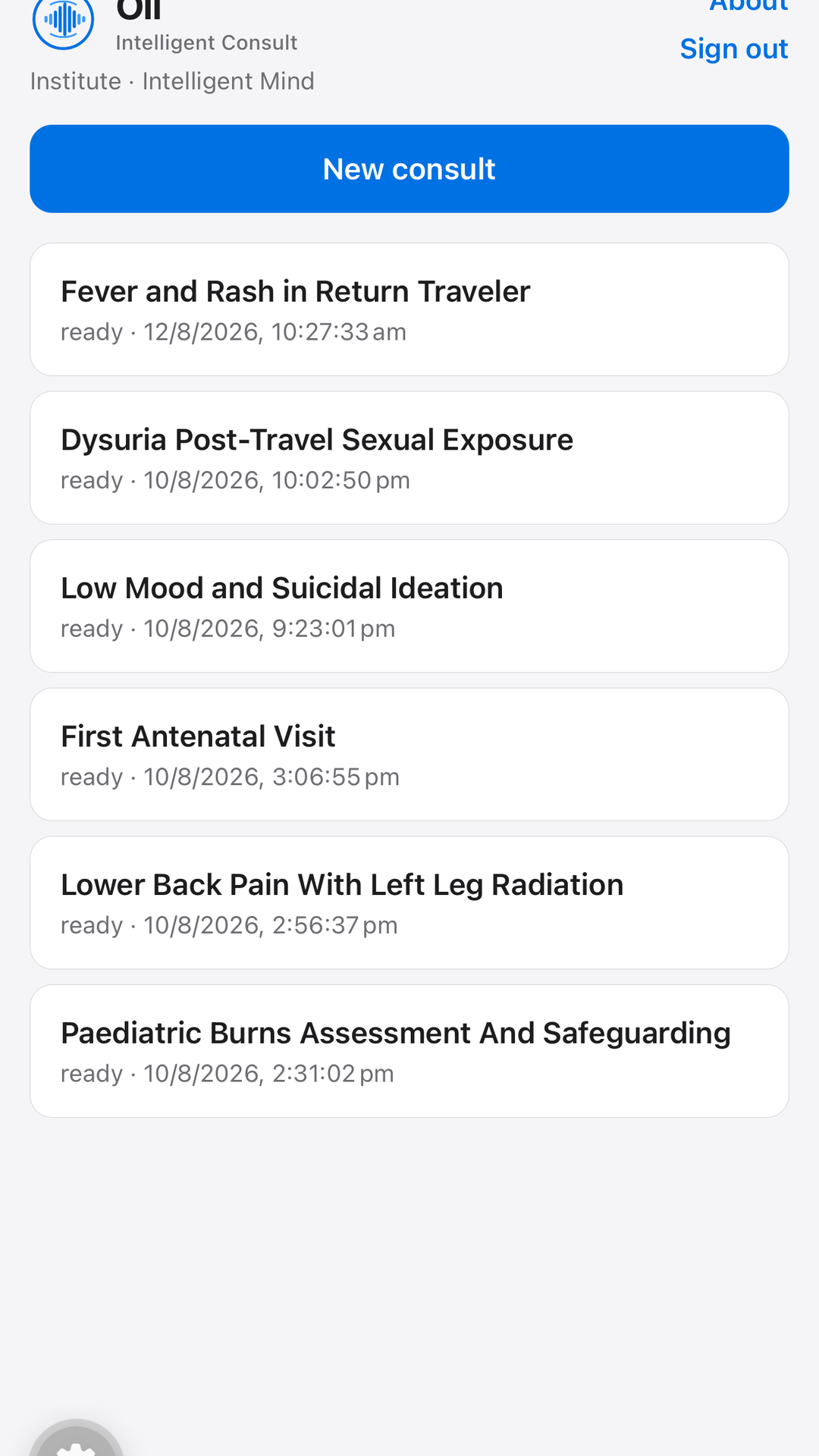
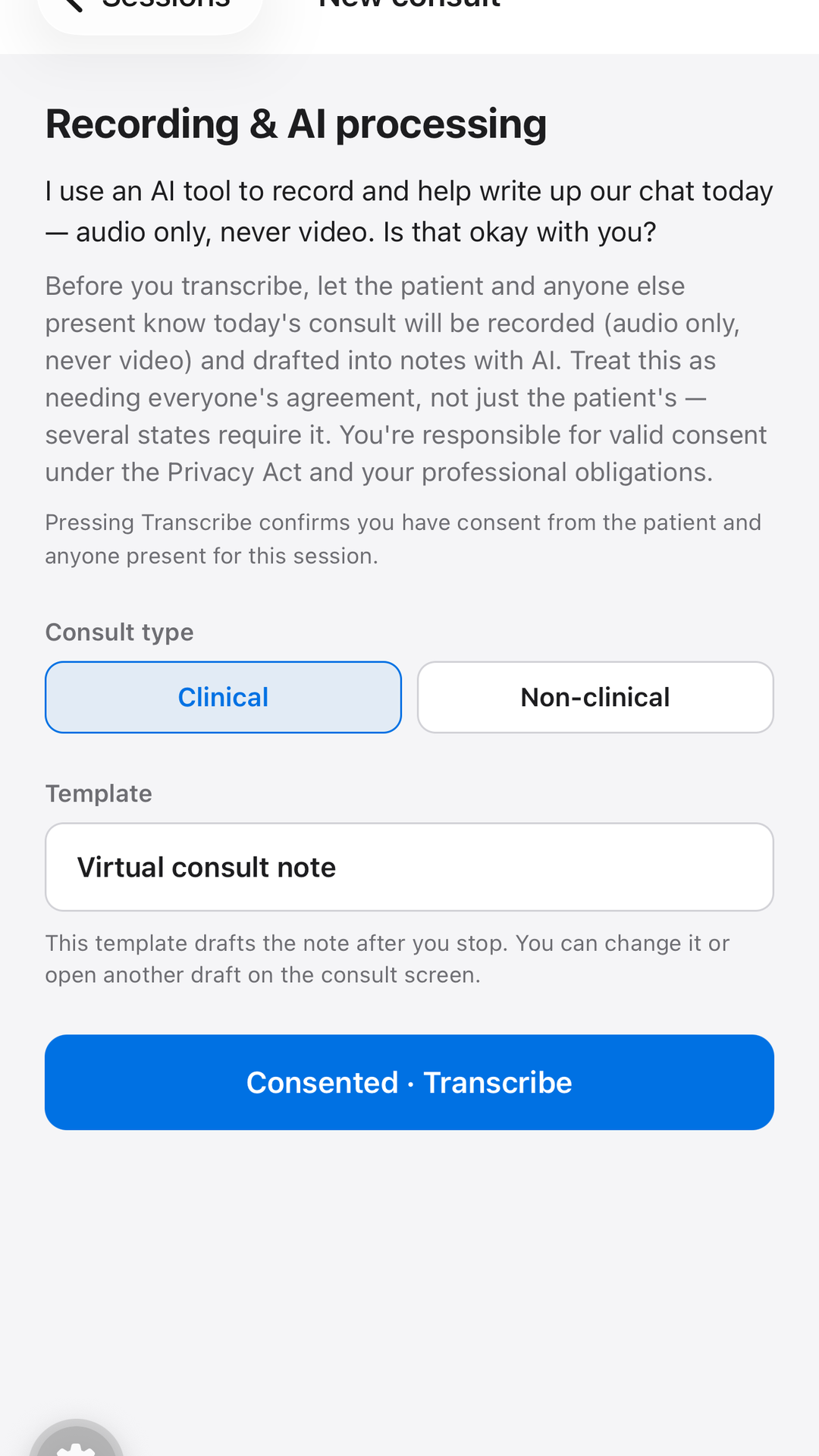
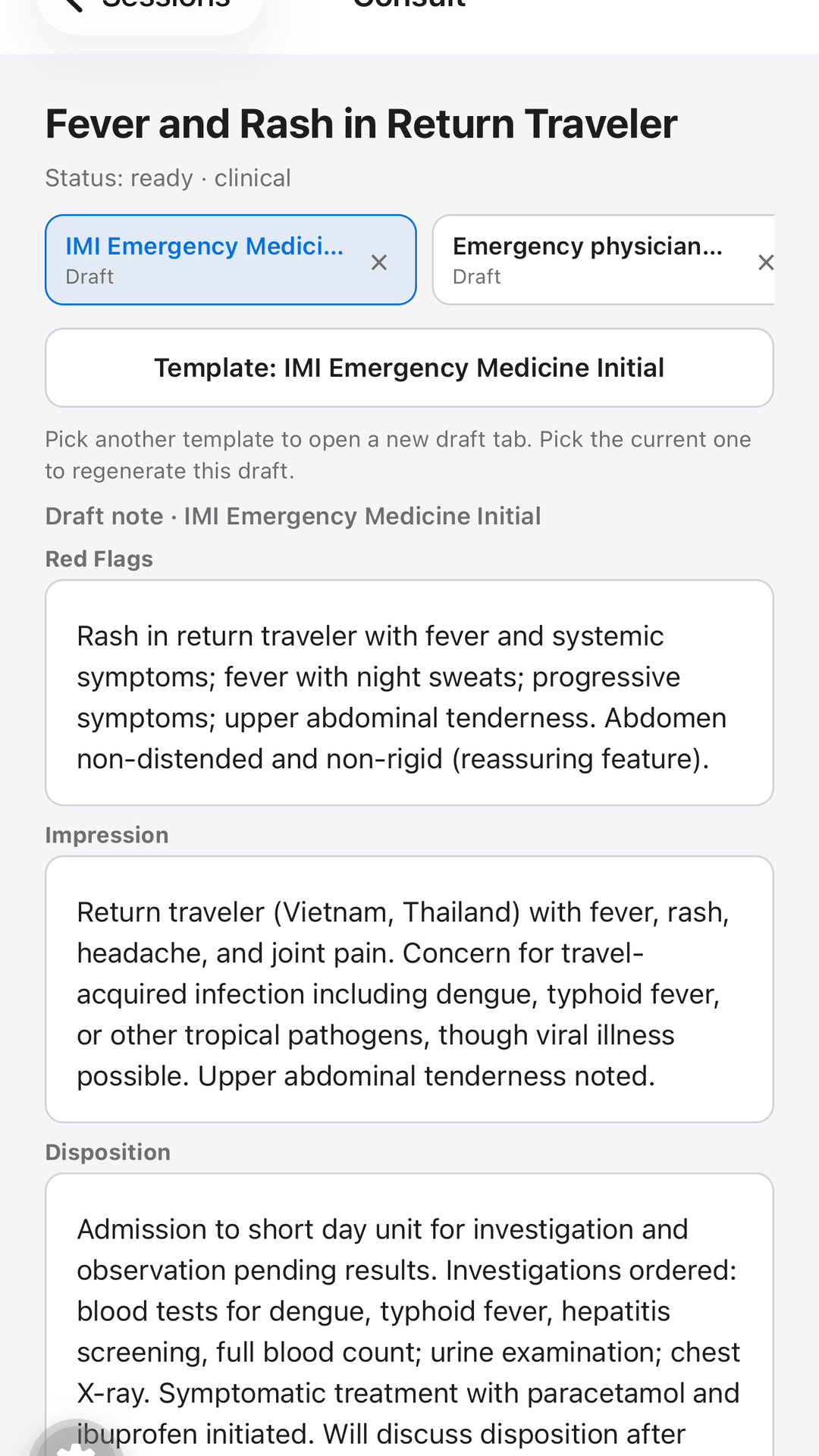
Wear OS
Pixel Watch, Galaxy Watch 4 and later, and other watches on Wear OS 4 or later. The watch is a microphone. Pairing happens in your account — you do not need the Android phone app.
Same Play listing as the Android phone app. On a paired phone, choose the Wear OS install for the watch.
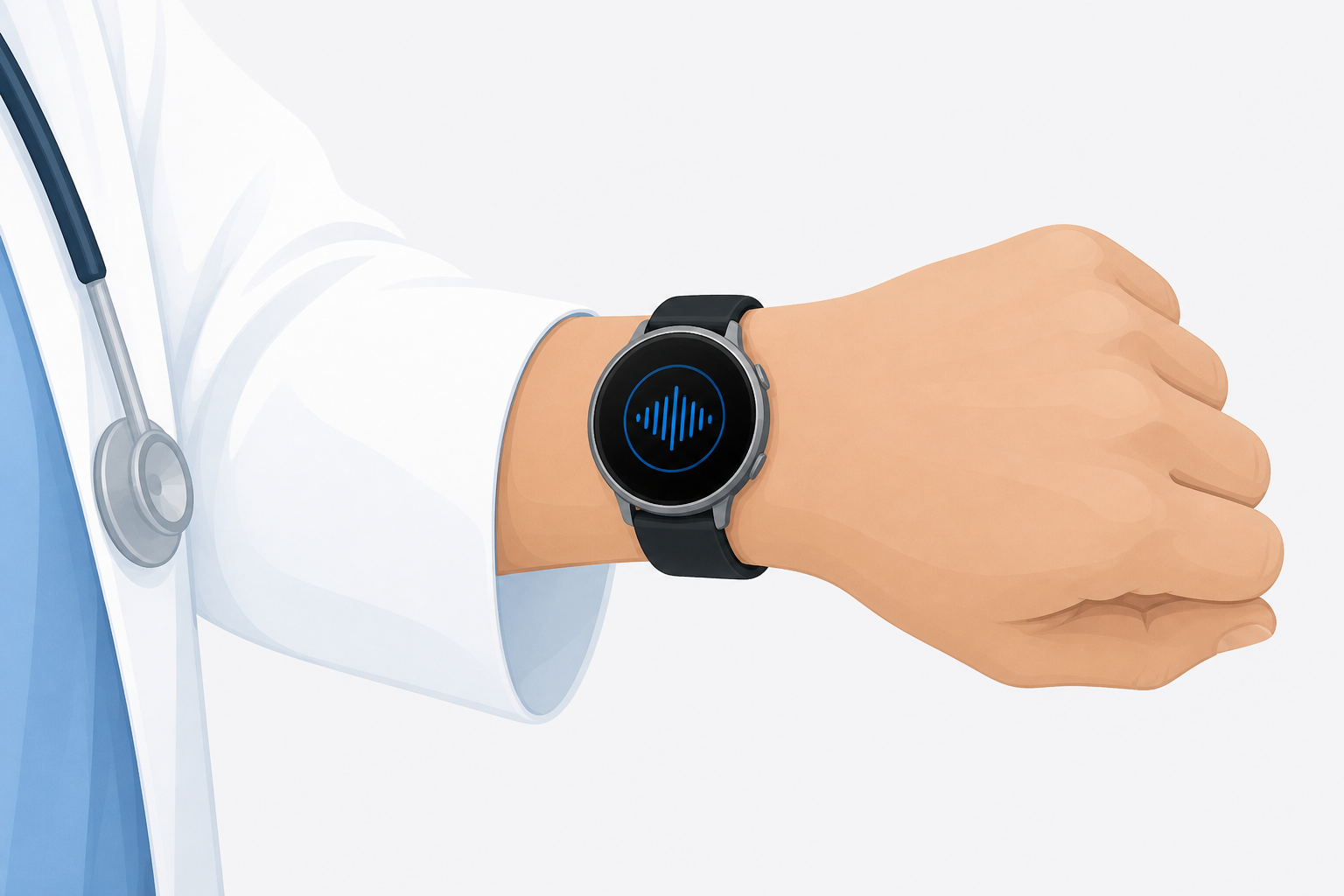
Open Play Store on the watch and search Intelligent Consult. Or open the phone listing and send the Wear OS install to the wrist. Installing only the phone app does not put the watch app on the watch.
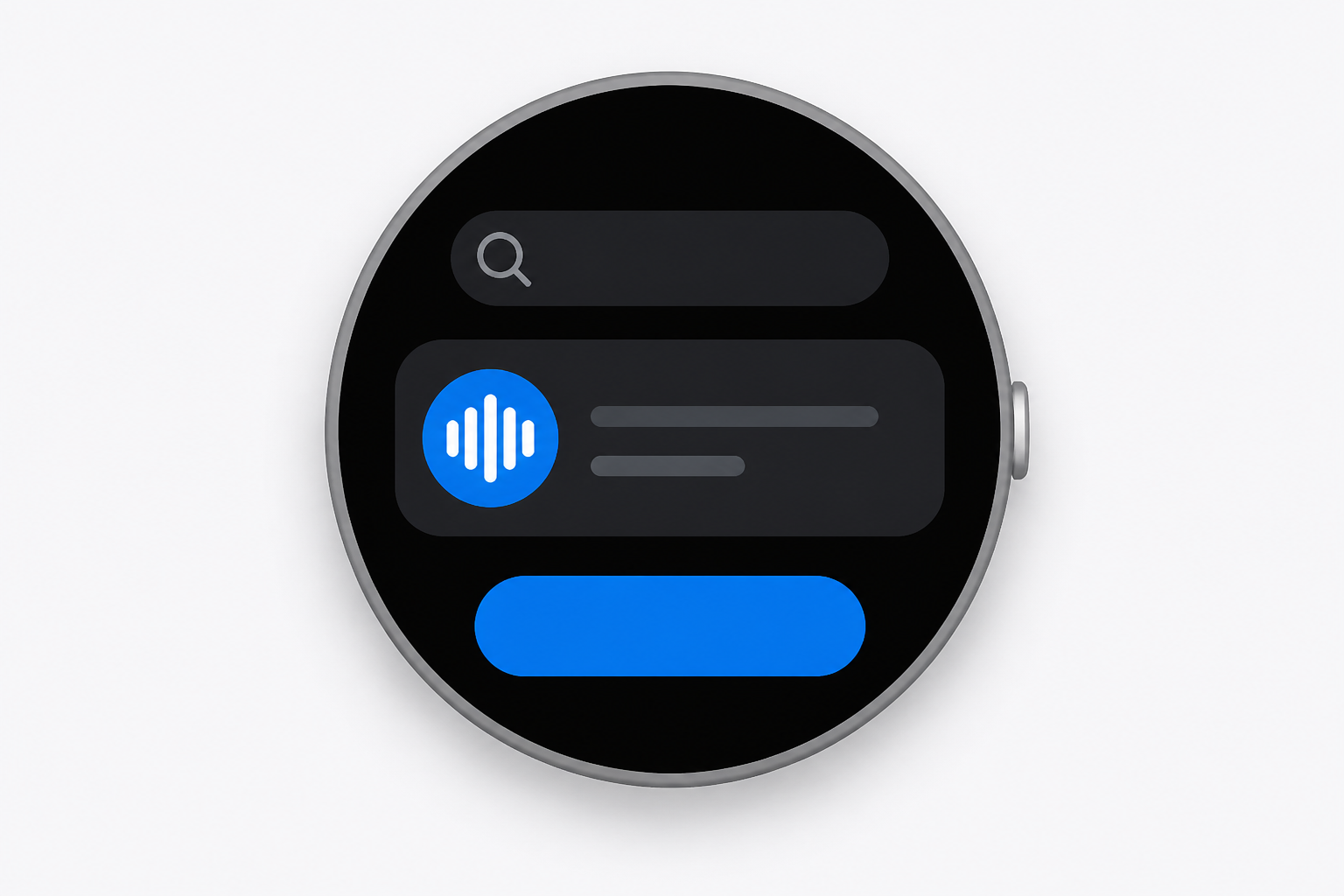
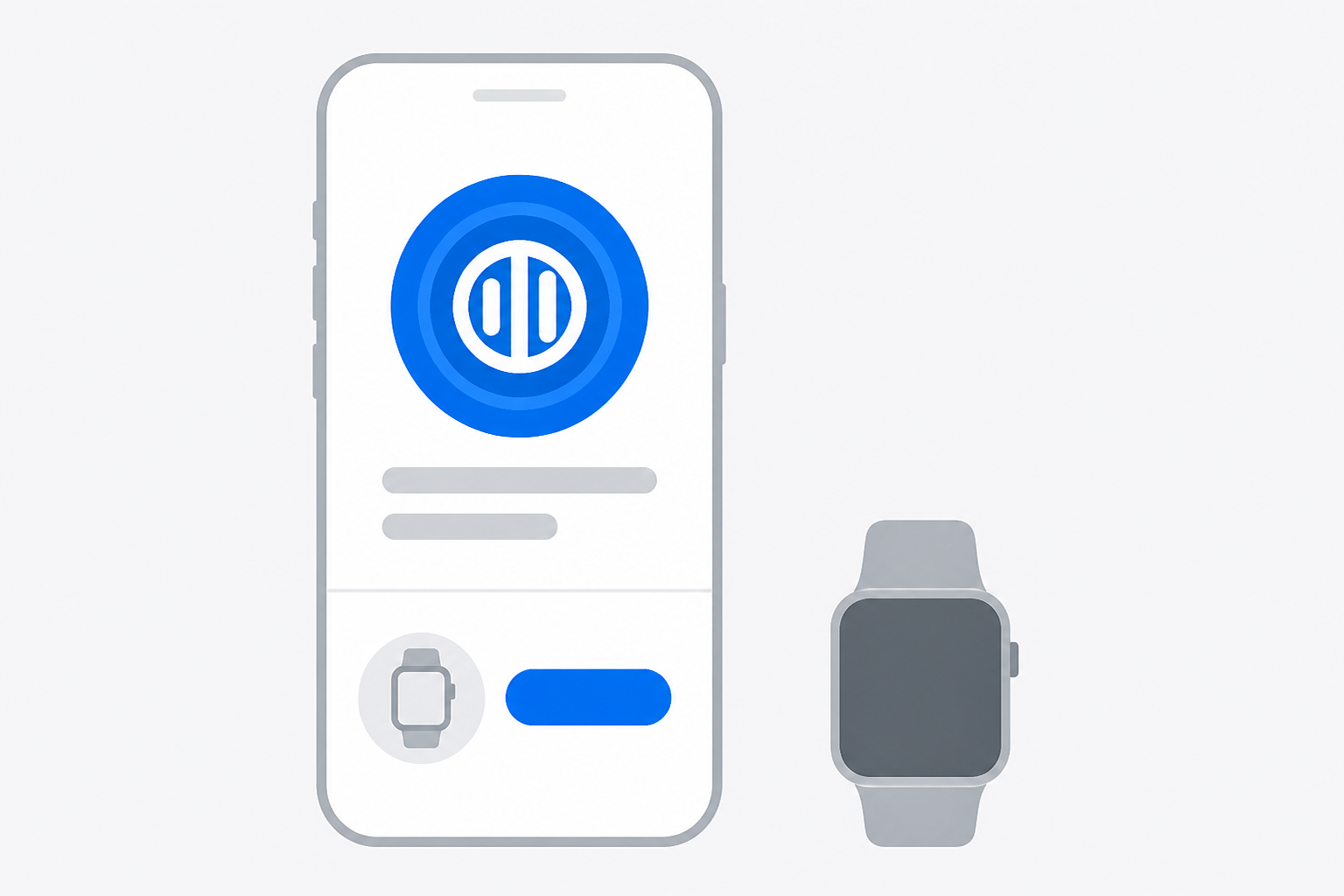
The first screen shows an eight-character code such as ABCD-EFGH. It lasts about ten minutes. Tap Refresh for a new one. Keep the app open on the watch.
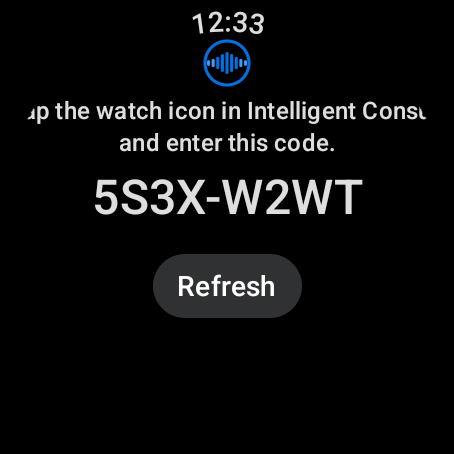
On the web or desktop, open Pair watch and type the code. The hyphen is optional. After you approve, the watch finishes on its own.
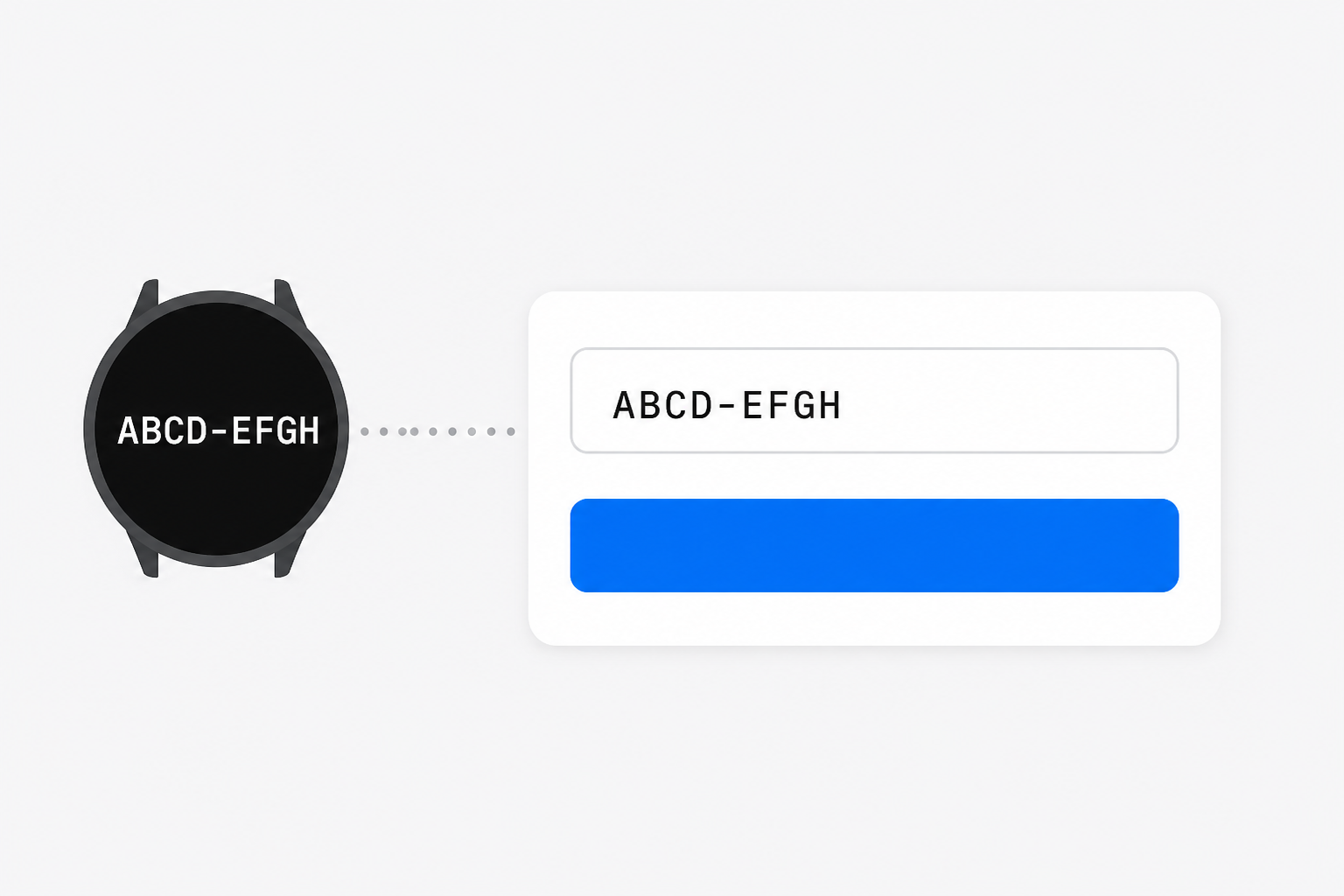
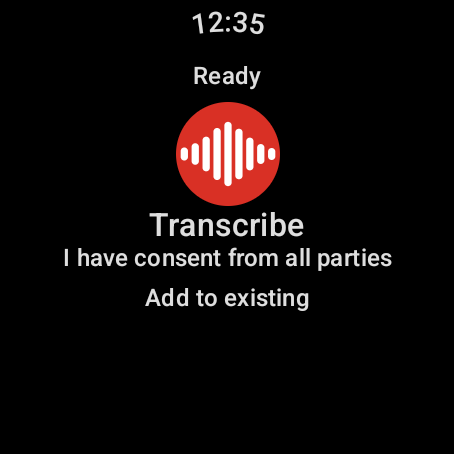
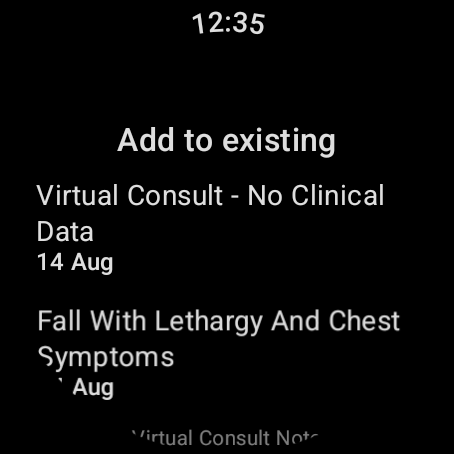
The watch shows Ready and Transcribe. The first consult asks for consent. Add the Start consult tile from the Wear OS tile carousel for one-tap start. Review and finalise on desktop — or in the web console if you cannot install. Glance on the phone. Not on the watch.
iPhone & iPad
The iPhone and iPad app is for the room and for phone-on-speaker. It does not capture call audio from Zoom or Teams. Glance at the draft on the phone; review and finalise on desktop — or in the web console if you cannot install.
For iPhone and iPad · opens the App Store
Install from the App Store
Open the listing with the button on this page and install Intelligent Consult.
Sign in and allow the microphone
Use Sign in with Apple, Google, Microsoft, or the same email as desktop and the browser. Allow the microphone when asked. Audio only.
Finish the note on a computer
Glance at the draft on the phone. Review and finalise on desktop, or in the browser if that is your computer.
Coming soon
The Apple Watch app is not available. Pairing an Apple Watch will not work. Wear OS is the watch you can pair today.
Coming soon
A wrist recorder, the way Wear OS works today. Not available to pair yet.
Desktop is home. Phone and watch capture in the room. Web is the fallback console — drafts still land here.