Setup · 6 min read
Desktop, phone, and watch setup
One account. Desktop is home — listen in the room or on a call, then review, edit, and finalise there. Phone is the next-best recorder in the room. Watch records from the wrist only. Browser is the fallback console when a clinic PC cannot install the app. Installers, the App Store and Play listings, and pairing walkthroughs are on Download.
- Desktop (Mac or Windows) — home base for face-to-face and telehealth
- Phone — mic-only in the room or with the phone on speaker; glance at the draft, finish on a computer
- Watch — mic-only recorder on the wrist; never the place you finalise
- Browser (fallback) — locked clinic PC or a first try; Chrome/Edge can still do mic + call via tab-share; Safari and Firefox stay mic-only
Audio only. Never video.
Desktop
Download the Mac or Windows app from Download. Sign in with the same email, Google, or Microsoft sign-in you use elsewhere.
Leave the mic on in the room. Choose Mic + call audio for telehealth. The desktop app captures your microphone and the call automatically — never the video stream. It stays in the menu bar while you work.
Browser (fallback)
Use the browser when you cannot install the desktop app, or to try the product first. Phone and watch drafts appear in this workspace — it is still a full consult console.
Google Chrome or Microsoft Edge are required for mic + call audio — your microphone plus the other person’s call audio as separate channels. That path needs you to share the call tab. Safari and Firefox stay mic-only. Prefer the desktop app when you can install it.
- Open your video call in the browser (Zoom, Teams, or any browser call).
- Start a session in Intelligent Consult and choose Mic + call audio.
- When prompted, share the call and turn on audio sharing — this shares call audio, not video into our product.
- Allow microphone access.
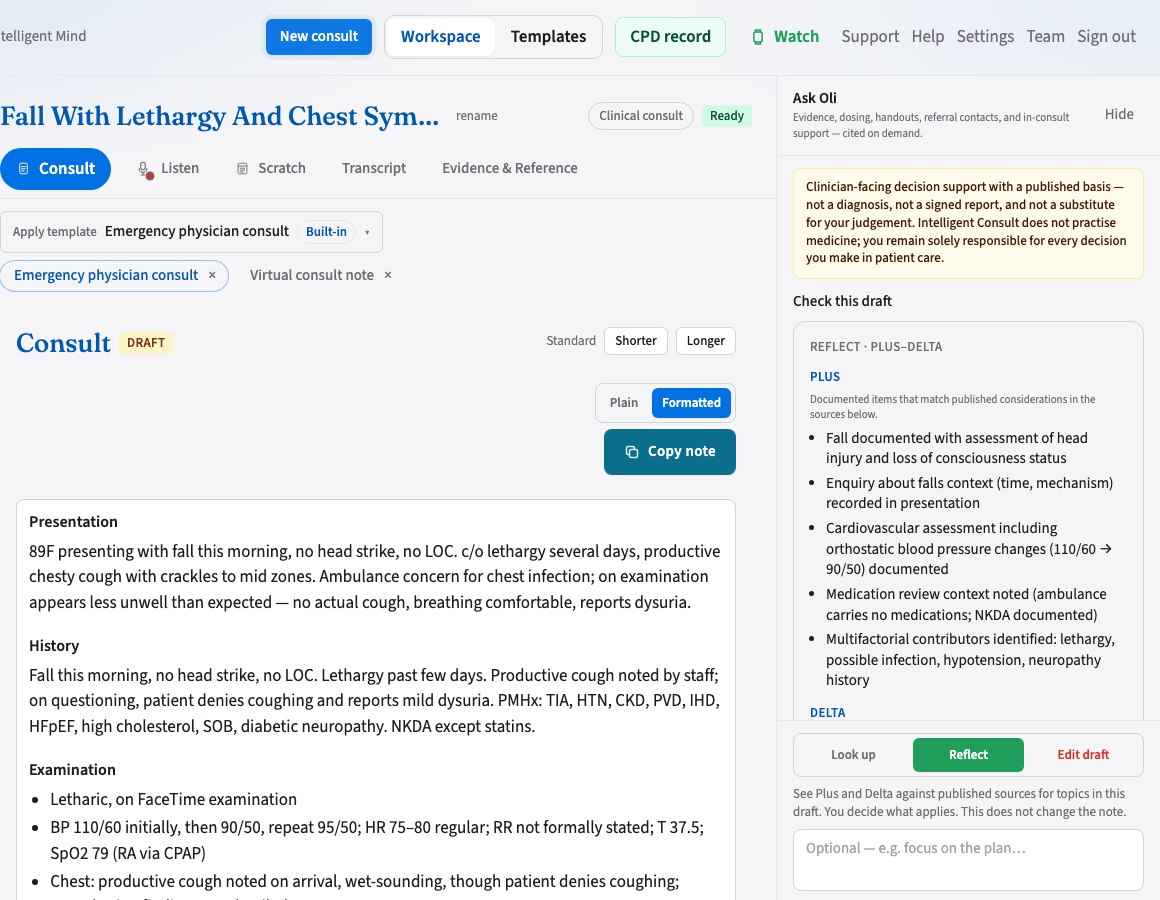
Drafts captured on phone or watch land here and on desktop. Prefer the desktop app to review and finalise. If this browser is your only computer, finish here.
Phone
The iPhone, iPad, and Android apps are for the room and for phone-on-speaker. They do not capture Zoom or Teams from another app.
- Install from the App Store (iPhone and iPad) or Google Play.
- Sign in with the same account. On iPhone or iPad you can use Sign in with Apple, Google, Microsoft, or email.
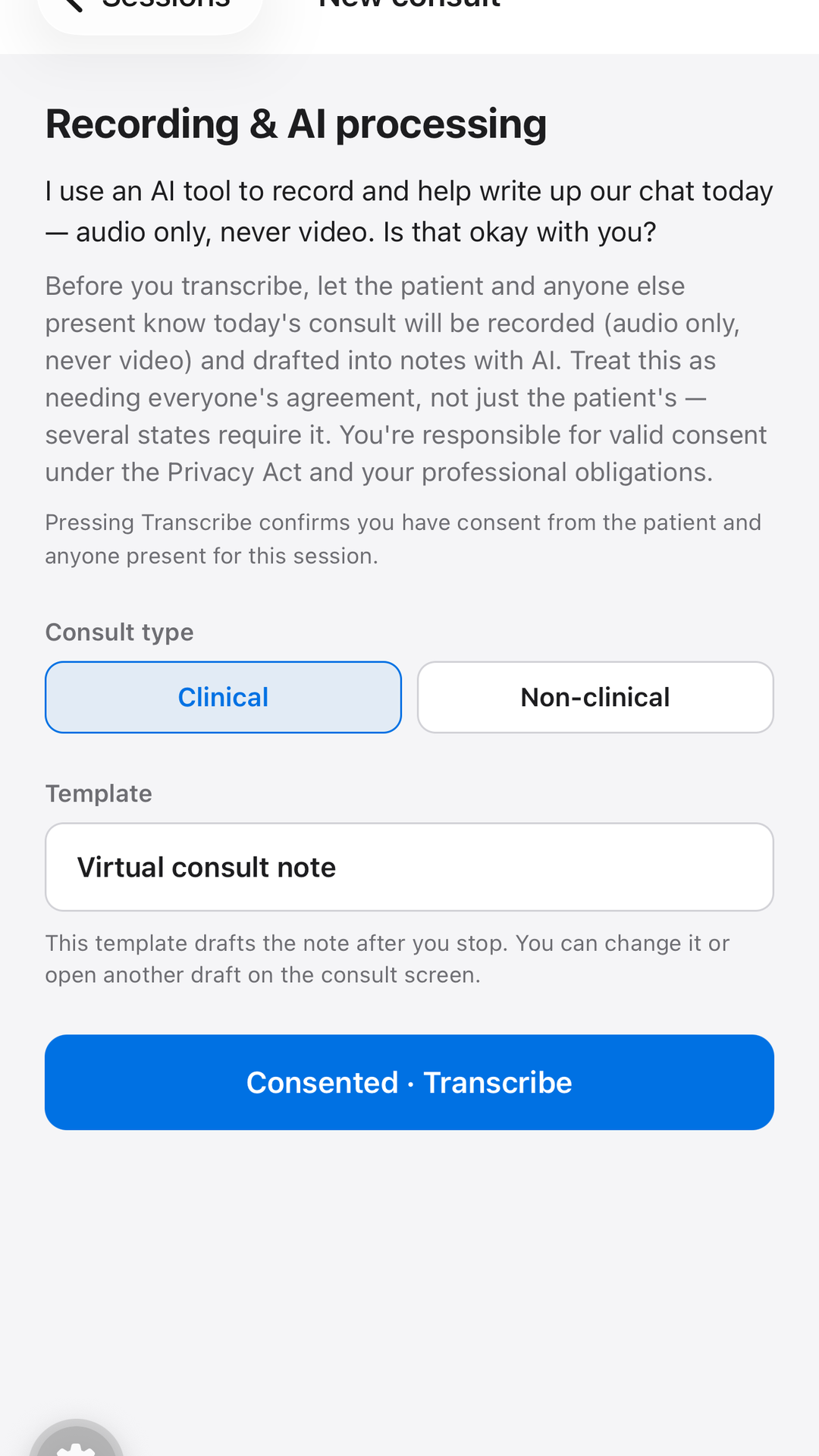
- Read consent, then Transcribe. Keep the app open while you record — the phone app keeps listening if the screen sleeps.
- Open the draft on desktop to review and finalise — or in the browser if that is your computer. You can glance at it on the phone.
Place a phone consult on speaker so both sides mix into the microphone.
Watch
Wear OS (Pixel Watch, Galaxy Watch 4 and later) is a microphone. Pairing happens in your account — you do not need the Android phone app. The Apple Watch app is not available, and pairing an Apple Watch will not work.
- Install Intelligent Consult on the watch from Play (the phone-only install is not enough).
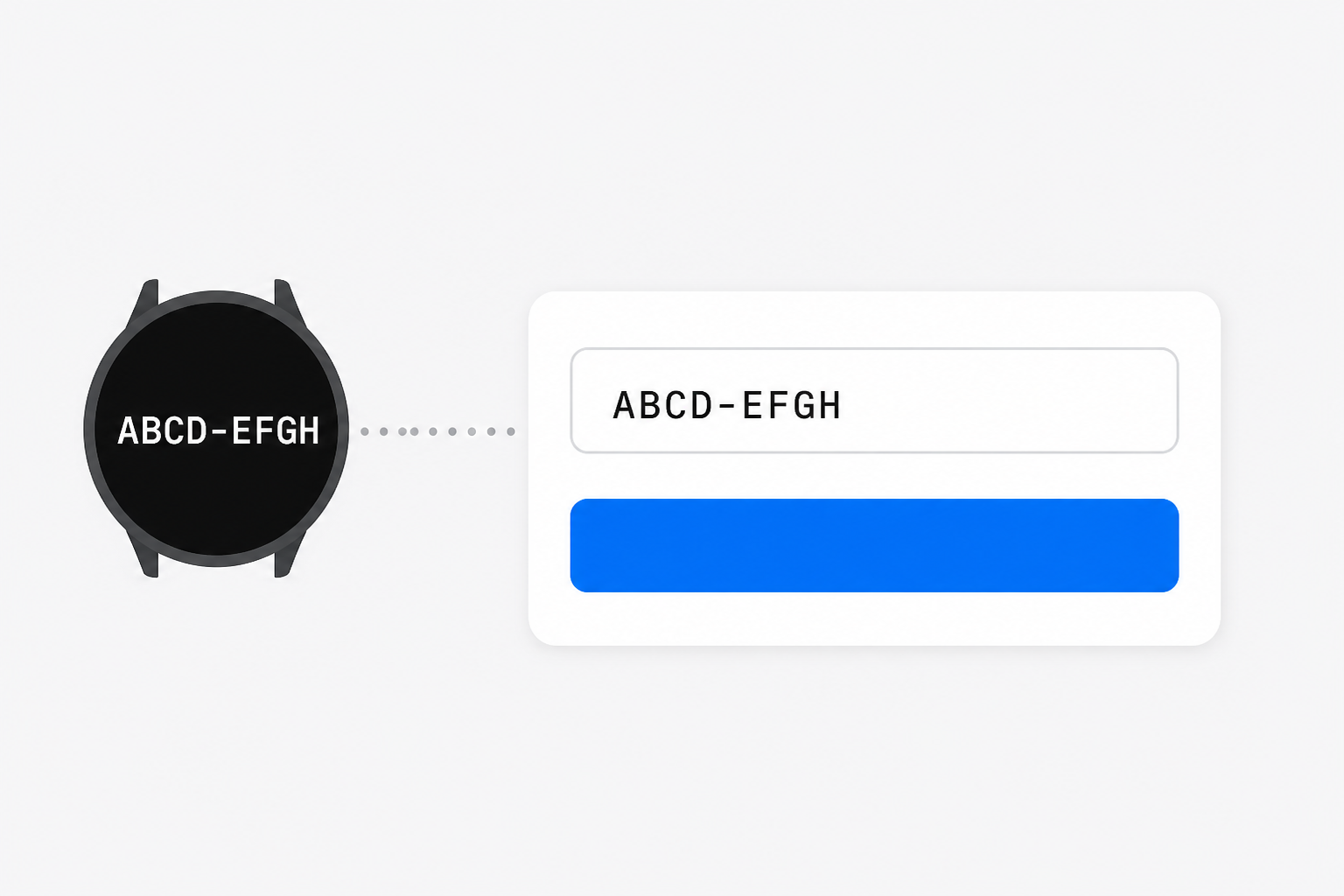
- Open the watch app — it shows a code such as ABCD-EFGH.
- On web or desktop, open Pair watch (Settings) and approve that code.
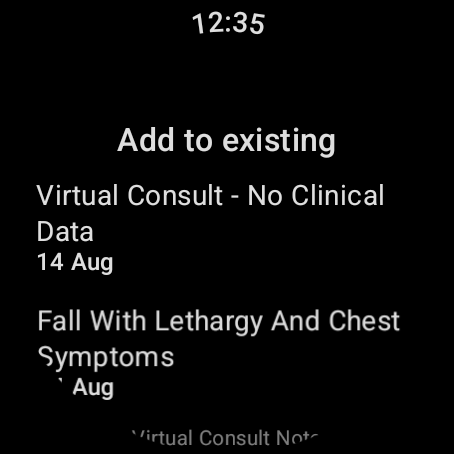
- The watch shows Ready and Transcribe. Keep the app frontmost while you record. Open the session on desktop — or in the browser if you cannot install — to review and finalise. Not on the watch.